


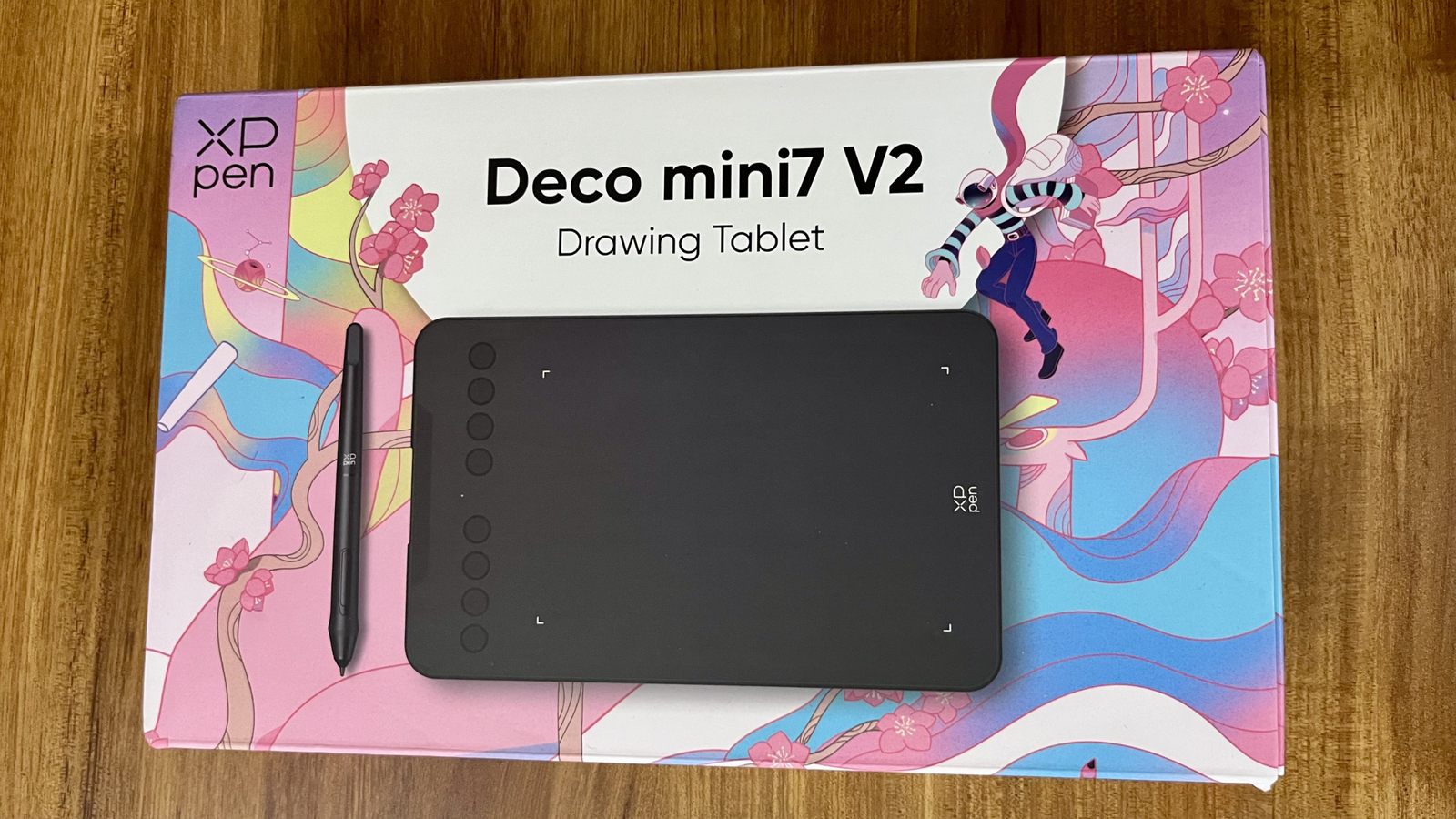
XP-Pen Deco Mini7 V2 Review
Disclosure: This article contains affiliate links, and a small commission is earned at no extra cost to you if you purchase through these links.
If you are an online tutor or a YouTuber creating educational content, you know the struggle: trying to explain complex logic with just a mouse is a nightmare.
In this detailed review, I’ll share my experience using the XP-Pen Deco Mini7 V2 pen tablet for online teaching, coding tutorials, PPT explanations, and diagram drawing.
Is it worth buying? Let’s find out.
Why I Bought XP-Pen Deco Mini7 V2
Before I bought this tablet, my teaching process for Vairagicodes was incredibly time-consuming.
I used to teach coding using Canva and by manually animating objects in Power Point. To show how a loop works or how data moves, I had to create dozens of tiny animations just to make the point clear.
It worked… but honestly, it was time-consuming. Sometimes I would spend hours adjusting animations just to make one explanation look clean and smooth.
When teaching topics like Java and DSA concepts, I realized I needed a more natural way to explain things. I didn’t want to depend on unnecessary animations anymore.
That’s when I decided to invest in a pen tablet.
Watch full review video below:
Now, instead of creating multiple animation layers in Canva or PPT, I simply write and draw directly on the screen while explaining.
It saves me hours of editing time.
It makes teaching more natural.
And it feels more interactive.
If you want to focus more on explaining concepts and less on adjusting slides and animations: View XP-Pen Deco Mini7 V2 Here
I was looking for something:
- Budget-friendly
- Beginner-friendly
- Compatible with Windows
- Perfect for teaching (not heavy graphic design)
My Experience Using XP-Pen Deco Mini7 V2 for Teaching and YouTube
I have been using the XP-Pen Deco Mini7 V2 pen tablet for coding tutorials, PPT explanations, and in Canva Presenter.
Overall, the writing experience feels smooth and responsive. The 16384 pressure levels make the handwriting look natural, and there is almost no noticeable lag while writing.
The pen is battery-free (no charging needed!).
I used it in:
- Power Point
- Canva
- OneNote
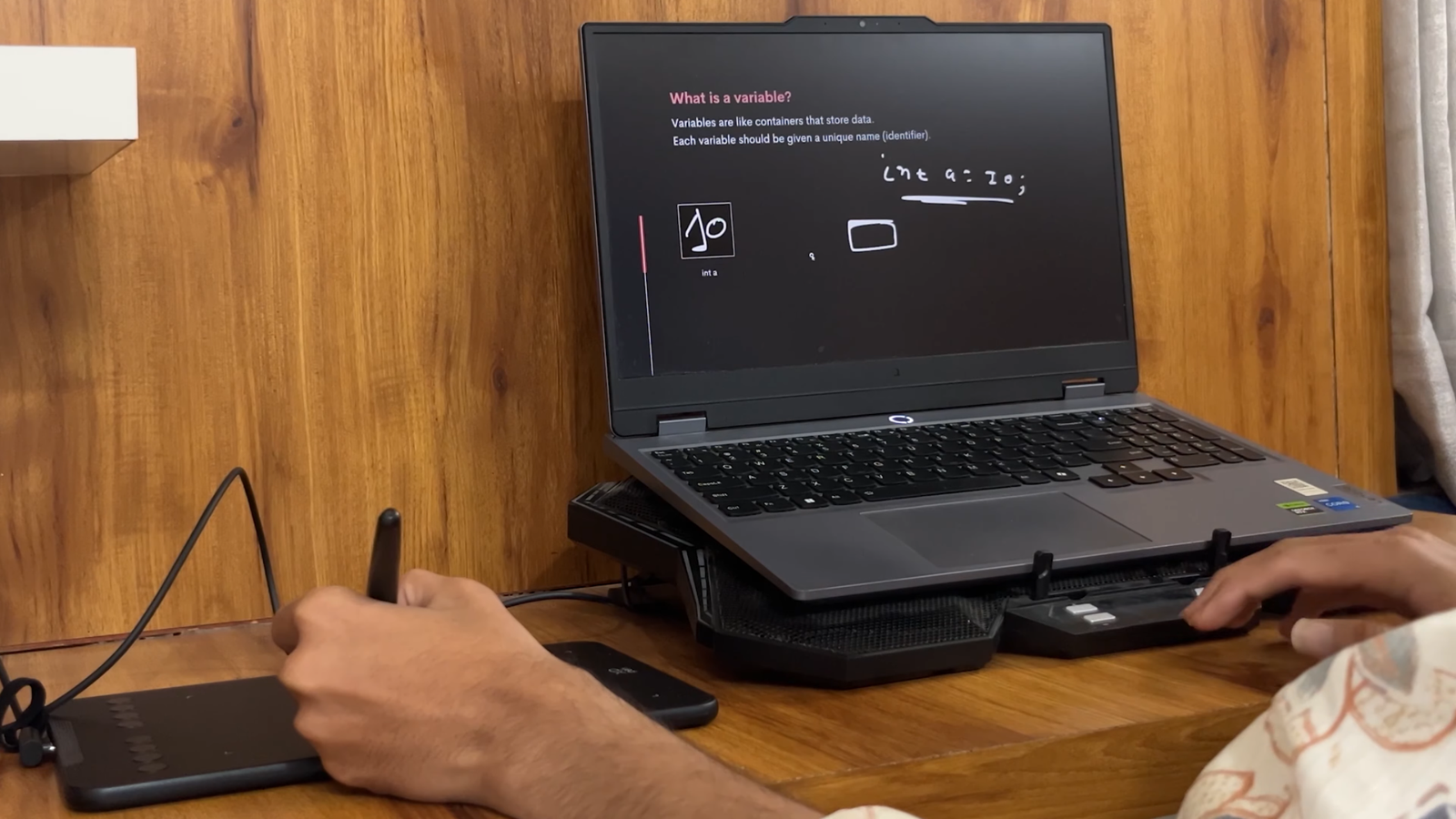
It worked well in all the apps, but there is one thing you should know before you buy:
The stylus is slightly thicker compared to a normal pen. At first, you might find it slightly difficult to grip comfortably. But honestly, after a few days of practice, you get used to it easily.
Once your hand adjusts, writing feels completely natural. So it’s not a major issue, just a small adjustment phase.
Key Features That Make Life Easier
1. The 8 Shortcut Keys
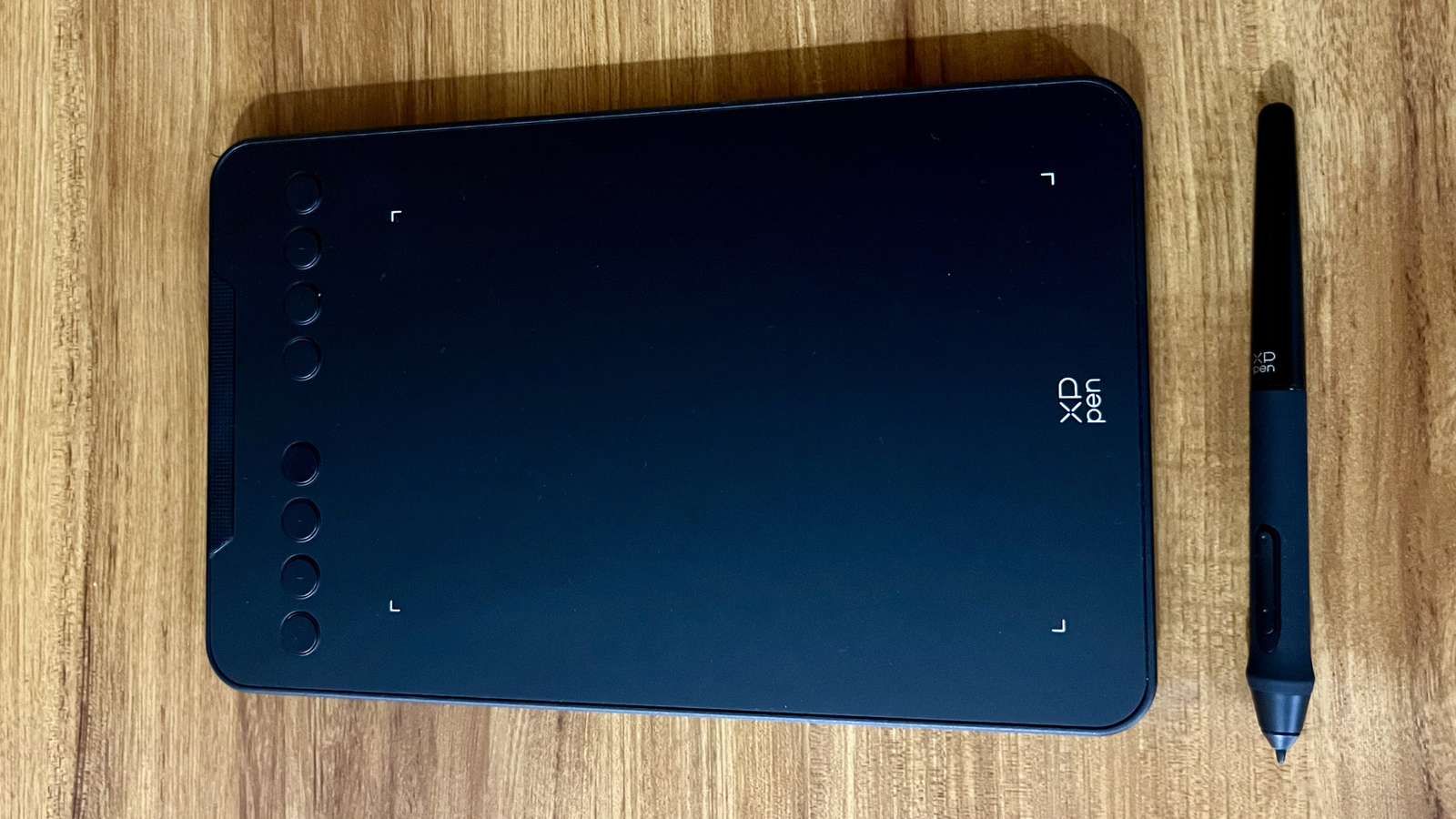
When I’m recording a video, I want to stay focused on the code, not the menu bar. That’s where the 8 shortcut keys on the side of the tablet become really useful. You can customize these keys according to your workflow and assign them to the functions you use most.
- Undo / Redo (Essential for quick corrections)
- Pen / Eraser Toggle
- Zoom In / Out
2. The Perfect Size
The drawing area is 7 x 4.37 inches. For online teaching, this is basically the sweet spot. You actually don’t want a massive tablet where you have to move your whole arm just to reach the edge of the screen. With this size, a quick flick of the wrist is enough to navigate your whole monitor.
3. Android & PC Compatibility
It’s basically plug-and-play. I primarily use it with my laptop, but the included OTG adapters mean you can even use it with your phone for a quick mobile whiteboard session.
Pros & Cons
- Massive Time Saver: Replaces the need for complex PPT animations.
- Budget Friendly: Premium features at a very affordable price.
- 8 Buttons: Keeps your focus on teaching, not keyboard shortcuts.
- USB-C Port: A modern, sturdy connection that won’t wiggle loose.
- Initial Grip: The pen is slightly thick and takes a little practice to handle comfortably.
- Surface Wear: Like most budget tablets, the matte surface will show small scratches over time, so try not to press too hard.
Final Verdict: Is It Worth It?
If you are serious about online teaching, coding tutorials, or explaining technical concepts clearly, investing in a pen tablet is a good idea.
After using the XP-Pen Deco Mini7 V2, I can confidently say it has significantly improved my workflow and saved me a lot of time.
Yes, the stylus feels slightly thick at first, and there is a small learning curve. But within a few days of practice, you get comfortable with it.
For its price range, it offers excellent value, especially for teachers, coding educators, and students who want a budget-friendly solution. It may not be a high-end graphic design tablet, but for teaching and educational content, it does the job very well.
If you’re still creating those unnecessary animations, upgrading to a pen tablet like this can truly improve your teaching experience.
Rating: 4.5/5 Stars
Ready to upgrade your teaching setup?